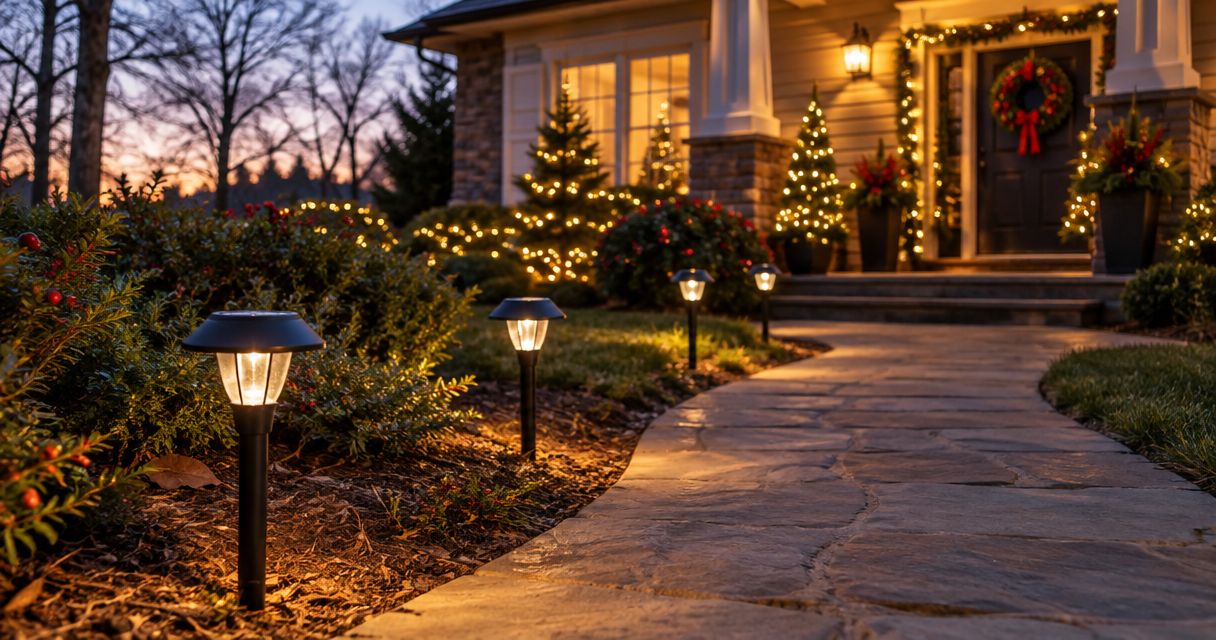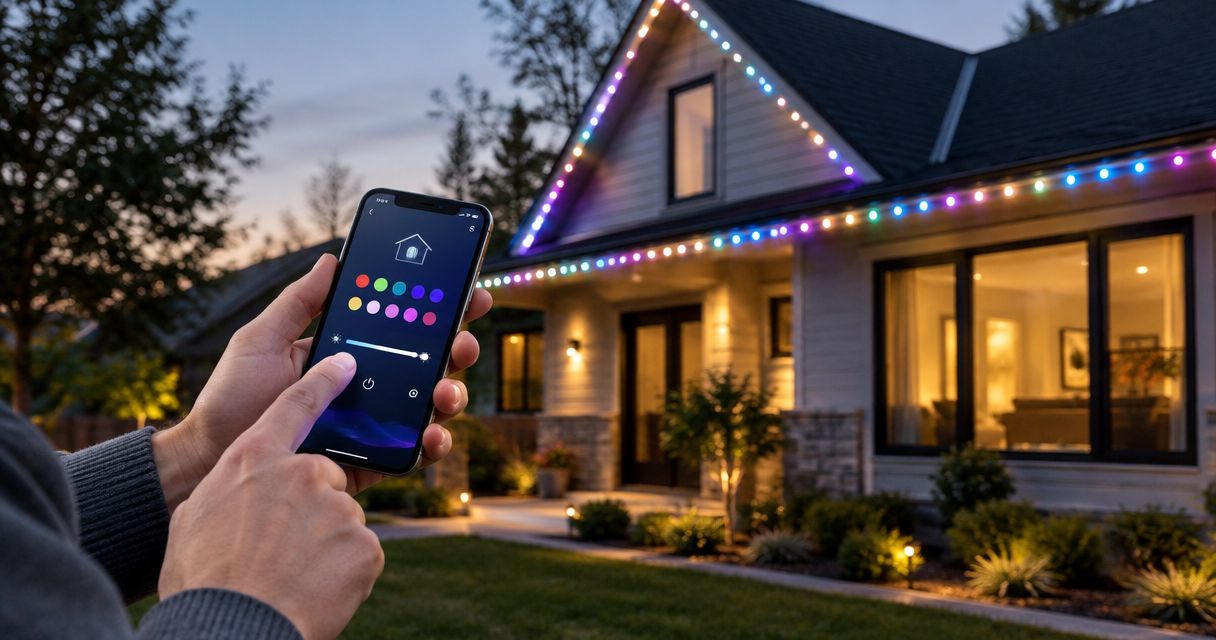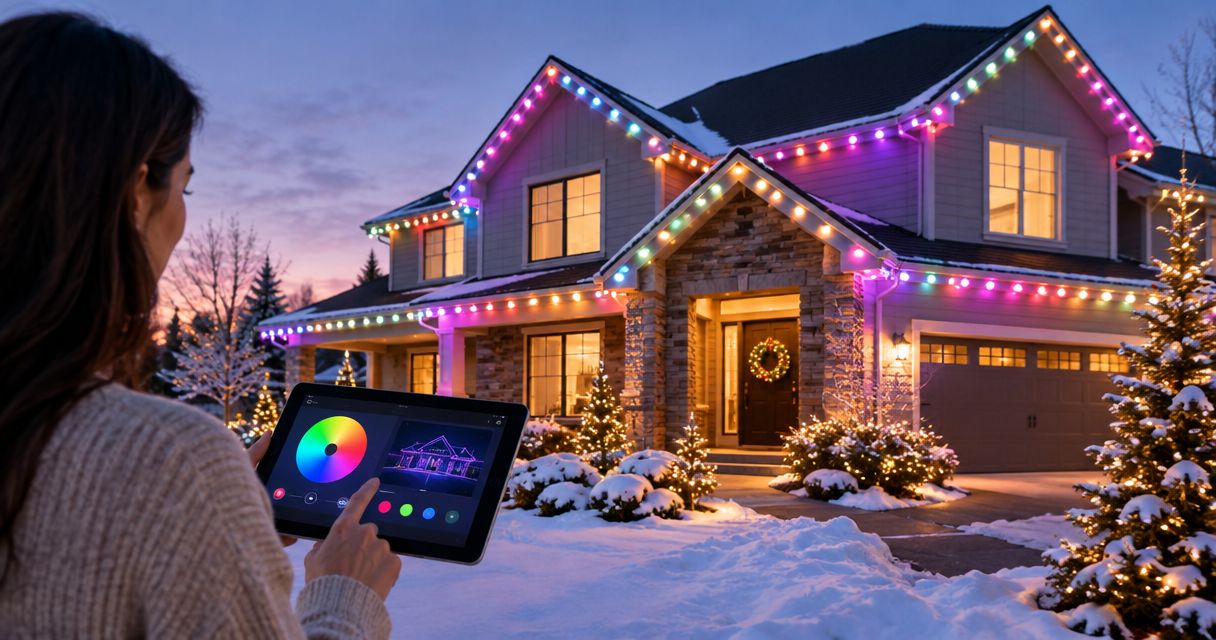
Instead of manually changing your exterior lights for every occasion, organize permanent lighting into saved scenes, dated schedules, and an everyday fallback so year-round holiday displays follow a repeatable routine. Start with a working, outdoor-rated installation; this guide covers display planning and controller setup, not electrical installation.
- For permanent lighting year round holiday displays, use saved scenes, clear schedules, and an everyday fallback.
- Confirm your controller supports the scheduling functions you need before building a holiday calendar.
- Atlanta Christmas Lighting Co suits Atlanta properties seeking full-service seasonal Christmas lighting, rather than a controller-only solution.
- Keep permanent lighting and temporary decorations on separate maintenance and removal plans.
Why this matters
A permanent installation and a year-round display plan are different things. Leaving fixtures mounted does not decide which colors run, when they stop, or what happens after a holiday.
Your 2026 workflow needs an end condition as much as a start time. Without one, you still have a manual task after every celebration. A dependable plan assigns each display a scene, an operating window, and a return to ordinary lighting or darkness.
Atlanta Christmas Lighting Co provides Christmas lighting services covering design, installation, maintenance, and takedown/storage for residential and commercial properties across greater Atlanta. Keep that seasonal service scope separate from the capabilities of any permanent lighting controller you already own.
Before you start
- Gather access and documentation. Have the controller's manufacturer instructions, authorized account access, and a property owner or manager who can approve the display. If app access is not established, start with this guide to connecting permanent LED Christmas lighting to a smartphone app.
- Check capabilities before planning. Confirm whether your installed system supports saved scenes, individual lighting zones, recurring schedules, date limits, and operation without an internet connection. These are requirements to check, not features every controller includes.
- Find the hidden conflict. Identify every device or routine that controls power or sends lighting commands. An upstream timer that cuts power can prevent the lighting controller from receiving its scheduled command; overlapping routines can replace the scene you intended.
Keep electrical work outside this setup process. Follow manufacturer instructions for outdoor use, and have a qualified professional assess damaged wiring, unsuitable connections, or installation changes. Never climb onto a roof to troubleshoot an app command.
Choose the right display approach
Best for recurring color changes: permanent lighting with verified scene and schedule support. It lets you reuse the mounted fixtures, but every desired effect still depends on the installed hardware and controller.
Permanent lighting does not replace every kind of holiday decoration. Compare the approaches before deciding what belongs in your 2026 plan.
| Approach | Best for | Practical advantage | Limitation |
|---|---|---|---|
| Permanent lighting | Repeated color changes along an installed lighting layout | Reuses the mounted lighting for different occasions | Fixture placement stays fixed; controller capabilities limit automation |
| Seasonal installation | A Christmas display designed for a particular property | Allows a separate seasonal design and planned removal | Requires installation and takedown coordination |
| Permanent lighting plus seasonal accents | Properties wanting ordinary exterior lighting and a distinct Christmas display | Gives each layer a separate purpose | Requires clear ownership of power, maintenance, and removal |
For seasonal Christmas lighting, Atlanta Christmas Lighting Co handles the service stages from design through takedown/storage. That removes those tasks from your own installation checklist; it does not establish compatibility with your permanent lighting system. Confirm the boundary between the two before combining them.
Configuration unit: lighting zones and the everyday scene
Start with a quiet baseline, not the most elaborate holiday effect. You need a known working state before adding exceptions.
Controller interfaces differ. Use the manufacturer's documented controls for each action below; a scene name suggested here is your own label, not a claimed app button or menu name.
- Map the existing lighting. List the sections your controller actually controls, such as the front roofline or entry. Do not assume that physically separate sections are independently addressable.
- Test each supported zone. Activate the zones individually through the documented controls. Match the physical response to your list before creating schedules.
- Create an everyday scene. Choose steady illumination appropriate to the property, or use an off state if decorative lighting is unnecessary between events. Save it as Everyday if your controller allows custom names.
- Check the view after dark. Look from the street, entrance, and neighboring property boundary. Adjust the supported settings to reduce unwanted brightness and distracting effects.
- Record the baseline. Note the selected zones, effect, and settings so another authorized person can recreate the result.
Expected result: You can deliberately select the everyday state and identify exactly which installed sections respond. If a section does not respond correctly, resolve that fault before adding automation.
Configuration unit: the holiday scene library
Build a small library you can recognize. A long list of nearly identical scenes makes seasonal changes harder to manage.
- Create 3 starter scenes. Use Everyday, Christmas, and Celebration as suggested names. Treat this as a manageable starting set, not a limit imposed by your controller.
- Choose the zones for each scene. Keep the entrance readable and avoid including sections that do not need decorative effects. Only use zone controls your system supports.
- Set the appearance. Select the supported colors, brightness, and motion behavior. Start with a steady display when you want a restrained look; add motion only after checking it from outside.
- Save and recall each scene. Switch to another scene, then select the saved one again. Confirm that the lighting returns to the intended appearance rather than an unsaved preview.
- Write a short scene register. Record each name, purpose, included zones, and person authorized to change it. For a business, include any property approval requirement.
Expected result: Every saved scene produces a recognizable display when recalled manually. You have separated appearance from timing, so changing a holiday's dates does not require rebuilding its lighting design.
Configuration unit: the calendar and fallback
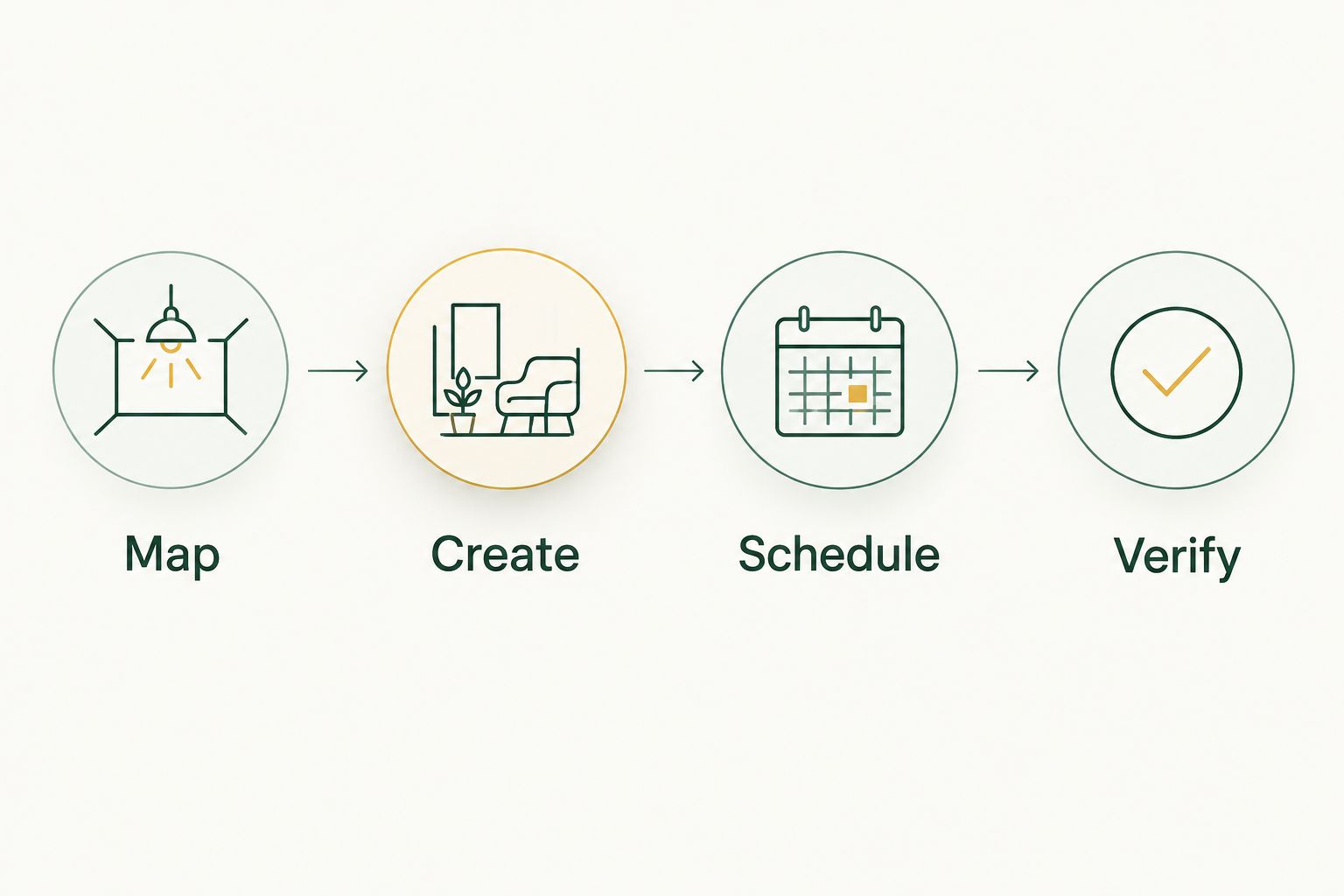
Use Map, Create, Schedule, Verify as your setup sequence. Once the scene library works manually, connect it to the calendar.
- Confirm the clock. Check the controller's documented time-zone and daylight-saving behavior for Atlanta. If the system uses location-based sunset events, confirm the property location too.
- Choose the scheduling owner. Use one controller or automation platform to issue the planned scene commands. Remove conflicting lighting commands from other routines rather than leaving their priority to chance.
- Define the event window. Record the first and last operating dates for each holiday in 2026. Use date-limited scheduling only if the controller supports it; otherwise, put the required manual changes on your calendar.
- Set both ends of the evening. Choose a start event and an explicit stop or everyday-state command. Sunset-based activation does not replace a stop instruction.
- Define the post-holiday state. Specify what runs after the event ends. Do not assume that an expired holiday schedule automatically restores another scene.
- Test 2 schedule transitions. Observe a start and a stop using a supervised test window supported by the controller. Restore the intended operating times afterward.
Expected result: You can explain what runs tonight, what stops it, and what runs after the holiday. Each answer has a documented command or an assigned manual action.
Configuration unit: testing and handoff
A successful manual preview does not prove that a schedule works. Test the complete sequence before you leave it unattended.
- Watch an automatic start. Leave manual scene controls untouched during the test. Confirm that the intended schedule selects the correct scene and zones.
- Watch the end condition. Verify the off command or everyday fallback separately. A correct start is only half the workflow.
- Check recovery behavior. Review the manufacturer's instructions for power and network interruptions. Use only the documented restart procedure; never interrupt power during a firmware update.
- Record the observed outcome. Note whether the controller resumes a schedule, retains a scene, or needs an authorized person to intervene. Do not assume that app access and local scheduling behave identically during an outage.
- Assign an owner. Record who approves changes, who receives fault reports, and who contacts the installer. Use supported account-sharing controls instead of distributing a shared password.
Expected result: Another authorized person can operate the display without guessing. Keep this handoff record with your 2026 property-maintenance notes, including the scene register and any unresolved limitations.
Second workflow: change the display when an event changes
For birthdays, venue bookings, or community events, a manual scene change is a useful adjacent workflow. Best for irregular events: a saved scene with an explicit return instruction. It avoids rebuilding the appearance, but someone must still own the change unless documented automation handles it.
When an event date changes:
- Update the event window in your display register.
- Change the matching controller schedule, if supported.
- Remove or disable the superseded event instruction.
- Check the next scheduled lighting action.
- Confirm when the everyday state resumes.
Do not assume that editing an external calendar updates your lighting. Use a calendar integration only when the controller or automation platform documents that connection. Otherwise, assign the update to a named person.
For your 2026 calendar, separate recurring holiday plans from one-off events. A repeating seasonal instruction should not keep restoring an event scene after that event has finished.
Troubleshooting
The display starts at the wrong time
Check the controller clock, time zone, daylight-saving behavior, and location settings used for sunset events. Then inspect every active schedule. Correct the setting that owns the command rather than compensating with another conflicting schedule.
The app works, but the scheduled scene does not
Confirm that the schedule is enabled and applies to the intended days, dates, and zones. Check whether an upstream timer removes power before the command. Verify the manufacturer's requirements for local or internet-dependent scheduling.
The lights switch back to another scene
Inspect overlapping routines, manual overrides, and commands from other authorized accounts. Disable the competing instruction, then test again. Use the controller's documented priority rules instead of assuming the most recently edited schedule wins.
Part of the display stays dark
Test the affected zone manually from a safe location. If the same section remains dark, stop treating the problem as a calendar issue. Have the installer assess the physical system; do not open powered connections or reach roof-mounted fixtures yourself.
The holiday ends, but its colors remain
Check for a missing fallback command or an active recurring routine. Restore the everyday state manually, then correct the event's end condition. Verify the next scheduled transition before leaving the system unattended.
Customize your workflow
Expand only after the basic sequence works. Add another occasion, another supported zone, or a separate seasonal decoration layer—not several untested changes at once.
For a combined display, document the responsibilities separately:
- Permanent system: controller access, saved scenes, schedules, and physical-system support.
- Seasonal decorations: design approval, installation access, maintenance reporting, takedown, and storage.
- Property management: approved operating hours, event changes, and the person authorized to request work.
Ask Atlanta Christmas Lighting Co about seasonal Christmas lighting design and service coordination when you want temporary decorations alongside an existing permanent installation. Describe the existing system during planning, and confirm the work scope before assuming that controller programming or permanent-system repairs are included.
FAQ
Can permanent lighting handle year-round holiday displays?
Permanent lighting can support different holiday displays when the installed fixtures and controller provide the required colors, effects, and controls. Verify those capabilities before planning scenes or automated dates.
Do I need a separate app for every holiday?
No; use saved scenes in the existing controller app if that system supports them. Different occasions need distinct settings, not automatically separate apps.
Can my permanent lights turn on automatically at sunset?
They can if the controller or a documented compatible automation supports sunset-based scheduling. Confirm location settings and add an explicit stop instruction.
Will my lights keep their schedule if the internet goes down?
That depends on where your controller stores and executes its schedules. Check the manufacturer's documentation and distinguish loss of remote app access from loss of local automation.
Can I combine permanent lighting with seasonal Christmas decorations?
Yes, but plan the two layers separately and confirm their electrical requirements with a qualified professional. Assign maintenance responsibilities and a removal plan for the temporary decorations.
Does Atlanta Christmas Lighting Co provide permanent lighting controllers?
The stated service scope covers professional Christmas light design, installation, maintenance, and takedown/storage across greater Atlanta. Confirm permanent lighting equipment and controller work directly before including either in a project.
What should happen after a holiday lighting schedule ends?
The display should return to your chosen everyday state or switch off. Configure and test that instruction explicitly rather than assuming an expired schedule restores another scene.
One last thing
Mounted year-round does not mean illuminated every night. An off state is a valid everyday scene, especially when decorative lighting has no purpose between events.
Before approving your 2026 display calendar, ask one question: what happens the evening after each holiday? A clear answer turns a collection of color presets into an operating plan.