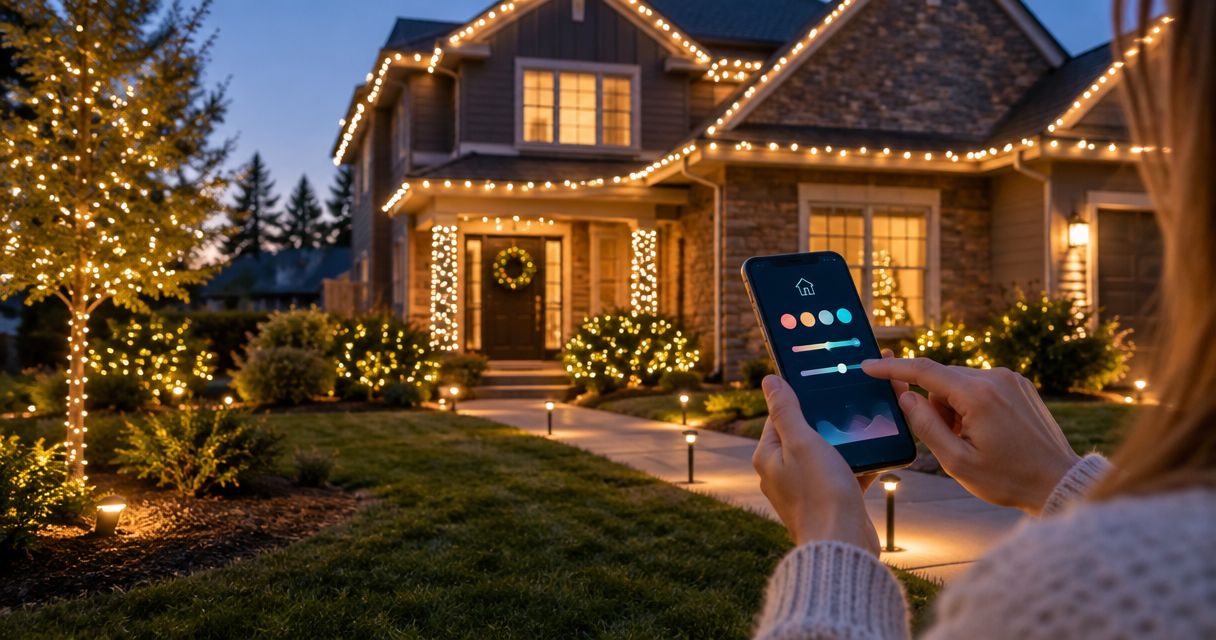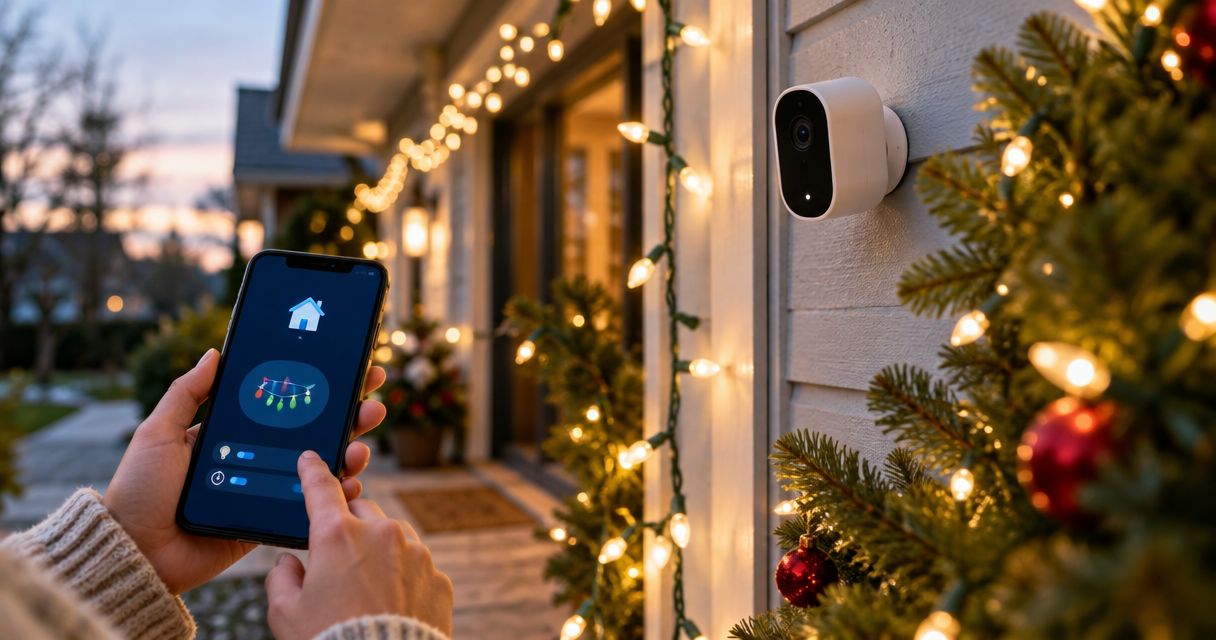
Instead of manually switching Christmas lights on each evening, connect an outdoor-rated smart plug to an Alexa or Google Home schedule; add Ring or Nest camera events only when your camera exposes a supported trigger. This ring nest christmas lights schedule guide separates dependable evening lighting from optional motion control, so your 2026 display does not depend on someone walking past a camera.
- For a ring nest christmas lights schedule, schedule the smart plug—not the camera’s recording settings.
- Ring camera events can start Alexa routines when the linked device exposes the required trigger.
- Nest camera triggers depend on device support; Google Home time schedules do not require camera motion.
- Atlanta Christmas Lighting Co handles Christmas light installation; confirm smart-control compatibility before choosing your controller.
Why this matters
A camera recording schedule is not a Christmas light power schedule. Your camera detects or records activity. A compatible smart plug switches the lighting circuit. Alexa or Google Home supplies the automation connecting those functions.
For your 2026 display, decide whether you want lights on every evening or only after an event. Those are different jobs. Use a time schedule for the display and reserve motion-triggered lighting for a separate accent or entrance zone.
Atlanta Christmas Lighting Co is best for Atlanta homeowners and businesses seeking full-service Christmas light installation, maintenance, and takedown/storage. Smart-home control is a separate compatibility decision; discuss the intended switching arrangement when planning your installation with Atlanta Christmas Lighting Co.
Choose the control path before buying equipment
| Control path | Best for | Advantage | Limitation |
|---|---|---|---|
| Ring with Alexa | A scheduled display with optional Ring event triggers | Supported Ring events and compatible plugs can participate in Alexa routines | Camera triggers depend on the linked device; cloud routines depend on connectivity |
| Nest with Google Home | A scheduled display managed alongside Nest cameras | Compatible plugs can follow household time automations | A Nest camera appearing in Google Home does not prove it supports an automation starter |
| Smart plug’s own schedule | Lighting that does not need camera events | Separates the lighting schedule from camera settings | Camera-triggered control requires an additional supported integration |
Choose the platform your plug actually supports. Owning a Ring or Nest camera does not make an unrelated plug compatible, and pairing both devices with a phone does not connect them to each other.
Before you start
- Accounts and permissions: Have access to the camera account, the smart plug’s manufacturer app, and the Alexa or Google Home household that will run the automation. Use an account authorized to link devices and edit routines.
- Electrical materials: Use an outdoor-rated switching device and outdoor-rated lighting connections, with GFCI protection where required. Check the controller’s load rating against the connected lighting load. Keep the camera on an unswitched supply.
- The compatibility gotcha: Confirm both the plug’s switching action and the camera’s intended trigger inside the automation app before planning motion control. A visible camera tile or working live view is not proof that motion is available as a starter.
For the 2026 installation, keep the smart plug reachable without climbing or disturbing the display. Follow its installation instructions for orientation, weather protection, network requirements, and electrical loading.
Do not use a smart plug to adapt incompatible lighting equipment. If your installation uses a separate controller or transformer, confirm that switching its incoming power is permitted and that the lights resume correctly afterward. The smart timer connection guide covers the lighting-side setup before camera automation enters the picture.
Lighting circuit setup
Treat the lighting circuit, switching device, and camera as separate parts. The camera stays powered continuously; the plug controls only the lighting load you have approved for switching.
- Install the outdoor smart plug according to its manufacturer’s instructions. Keep connections protected and do not exceed the device’s electrical rating.
- Add the plug in its manufacturer app and complete the required network setup. Follow that model’s Wi-Fi requirements rather than assuming every plug uses the same network band.
- Give the switched outlet a distinct name, such as Christmas Roofline. If the plug has independently controlled outlets, identify the correct outlet rather than naming only the whole device.
- Connect the approved lighting load. Switch it on and off from the manufacturer app while standing where you can see the display.
- Restore power and check the lights’ behavior. Some decorative lighting controllers return to a different mode after power interruption; resolve that before scheduling.
Expected result: The manufacturer app controls the intended Christmas lights without interrupting the camera, and the display returns in the intended lighting mode after switching.
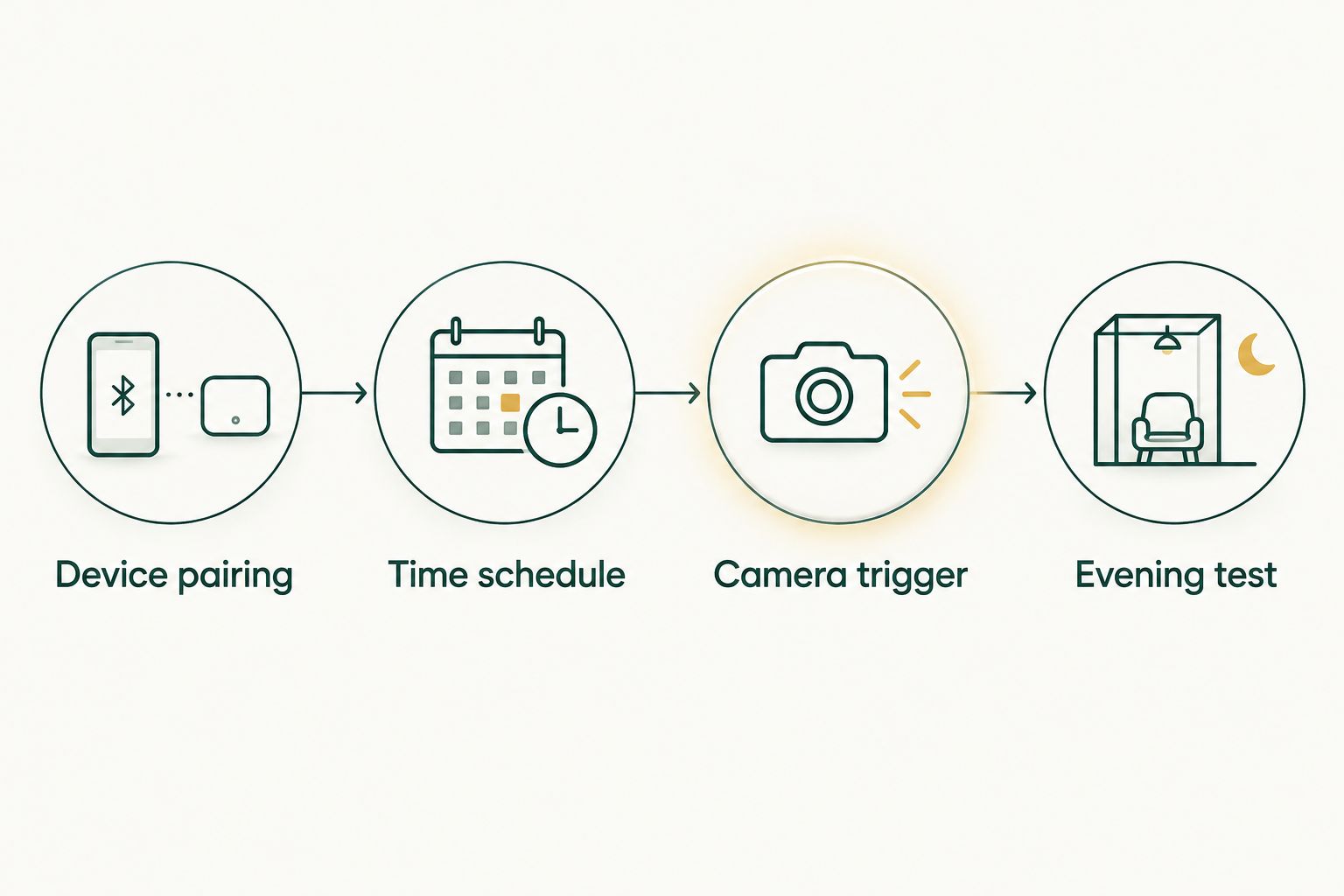
The basic sequence is Device pairing, Time schedule, Camera trigger, then Evening test. Add the camera trigger only after the time schedule works; otherwise, a failed event leaves you diagnosing several connections at once.
Ring and Alexa configuration
Use Alexa to schedule a compatible plug; use Ring only as an optional event source. The plug must appear as a controllable device in Alexa before a routine can switch it.
Device pairing
- Open the Alexa app and select More, then Skills & Games. Find the plug manufacturer’s official skill when that integration requires one, select Enable to Use, and complete account linking. For devices using another supported setup method, follow the manufacturer’s Alexa instructions instead.
- Open Devices and confirm the plug appears. Manually switch the correct outlet from Alexa, not just from the manufacturer app.
- If you want Ring events, find the official Ring skill under Skills & Games, select Enable to Use, and link the authorized Ring account.
- Confirm the intended Ring camera appears in Alexa. Check the available routine events before committing to motion-triggered lighting.
Expected result: Alexa switches the lights, and the Ring camera is linked separately. A missing camera event does not prevent you from using a time schedule.
Time schedule
- Open More, then Routines, and select + to create a routine.
- In the event section, select Add an event, then Schedule. Choose the time-based option and the days you want the lights to run.
- Set an example start time of 5:30 p.m. Adjust that example to your property and preferred evening display window.
- Select Add an action, then Smart Home. Choose the lighting plug and set its power action to on. Save the routine.
- Create a separate scheduled routine that switches the same outlet off. An example stop time is 10:30 p.m.; it is a planning choice, not a required setting.
Expected result: One routine switches the display on and another switches it off, without requiring Ring motion. Check the routine’s day selection and account time settings before relying on it for the 2026 season.
Do not substitute camera notification settings for these routines. Disabling alerts changes notifications, not the power supplied to your Christmas lights.
Nest and Google Home configuration
Use a Google Home household automation for the lighting schedule. Nest camera events are optional and device-dependent; the schedule itself needs only a compatible controllable plug.
Device pairing
- Add the plug using its manufacturer’s Google Home instructions. For a supported linked service, open Devices, select Add, and use Works with Google Home to link the required account.
- Confirm the plug appears in the correct home. Assign a clear name and room so household members can distinguish Christmas lights from ordinary porch lighting.
- Switch the plug from Google Home and watch the display respond. Stop here if Google Home cannot control the outlet reliably.
- Confirm your Nest camera belongs to the intended home. Camera setup differs by model, so use that camera’s supported setup process rather than moving accounts solely to obtain a lighting trigger.
Expected result: Google Home controls the lights independently of the camera. That is enough to build the nightly schedule.
Time schedule
- Open Automations in Google Home and select Add. Choose Household for a shared home automation.
- Select Add starter, then At a specific time. Enter your lighting start time and the intended repeat days.
- Select Add action, then Adjust home devices. Choose the lighting plug and set it to turn on.
- Save the automation. Create another household automation with a time starter and an action that turns the same plug off.
- Run the automation manually where the app provides that control, then verify the next scheduled start and stop at the property.
Expected result: Google Home switches the Christmas lights at the selected times. Nest recording, notifications, and camera activity remain separate.
For a 2026 Nest setup, do not assume that every camera event is exposed to every automation editor. The available device starters are the compatibility check. If the required event is absent, keep the time schedule and omit camera-triggered control.
Turn an accent zone on when the camera detects activity
A second workflow makes sense when you want an entrance accent to respond to activity without changing the main display. Keep the main Christmas lighting on its evening schedule and give the accent zone its own controllable outlet.
Ring event routine
- In Alexa Routines, create a separate routine. Select Add an event, then Smart Home, and choose the Ring camera.
- Select the motion event offered for that camera. If it is not listed, do not substitute an unrelated event or assume live-view access enables it.
- Add a Smart Home action that turns on the accent outlet. Use the routine’s active-time settings to restrict operation to the intended evening period.
- Add Wait with an example delay of 2 minutes, followed by an action that turns the accent outlet off. Test repeated motion before relying on the result; overlapping executions can produce unwanted switching.
Expected result: A supported Ring event activates the separate accent zone, while the main display remains governed by its nightly schedule.
Nest event automation
In Google Home, start a household automation and inspect Add starter, then When a device does something. Select the camera only if the required event is actually offered. Add the lighting action and any supported conditions or delay controls in that editor.
If the camera or intended event is absent, stop the camera-event setup. A time-based automation remains the appropriate workflow; changing recording settings does not create an unsupported starter.
Camera-triggered lighting is a convenience feature, not a safety or security system. Keep required walkway lighting and other essential illumination independent of camera detection and cloud automation.
Troubleshooting
The camera appears, but no motion trigger is available
Device visibility and automation support are different. Confirm the correct account is linked, then inspect the camera’s available routine events or household starters. If the event remains absent, use the time schedule rather than rebuilding the lighting circuit around an unsupported trigger.
The plug works in its own app but not in Alexa or Google Home
Test account linking and device discovery before editing the schedule. Confirm that the automation platform shows the correct controllable outlet, not an obsolete device entry. Relink the manufacturer integration when its instructions require it, then prove manual switching works again.
The lights turn off shortly after their scheduled start
Inspect every automation controlling that outlet. A motion routine’s delayed off action can conflict with the main display’s scheduled on action. Move motion control to a separate accent outlet or remove the conflicting off action; do not assign competing workflows to the same lighting zone.
The schedule runs on the wrong day or at the wrong time
Check repeat days, household location, and the time settings used by the controlling app. Inspect both the on automation and the off automation. For sunset-based control, verify location and offset settings instead of treating a fixed clock time as sunset.
The plug reports on, but the display stays dark
Check the lighting controller’s mode, accessible connections, and the supply’s protective devices. Do not repeatedly reset a tripping GFCI or bypass protection. Stop using the circuit and have the fault assessed; a software routine cannot correct an electrical problem.
Customize your workflow
Use a 5-minute observation window after a test command to watch for an unexpected delayed action from another routine. This is a suggested test period, not a platform requirement. Then verify an actual scheduled start, an actual scheduled stop, and the display’s behavior after a power interruption.
For a larger property, name lighting zones by their physical location rather than by plug model. Roofline, entrance, and courtyard names make troubleshooting easier, but only create separate controls where the electrical installation supports them.
Atlanta Christmas Lighting Co provides Christmas light design, installation, maintenance, and takedown/storage across greater Atlanta. Ask how the proposed lighting layout should interface with your existing controller before installation; do not assume the service includes a particular smart-home integration.
Plan your Christmas lighting setup
Discuss your Atlanta lighting layout and intended switching arrangement before installation.
FAQ
Can I connect Christmas lights directly to a Ring camera schedule?
Use a compatible smart plug and an Alexa routine to control the lights; a Ring camera recording schedule does not switch their power. Add a camera event only when Alexa exposes the required trigger for your linked device.
Can a Nest camera turn Christmas lights on when it detects motion?
A Nest camera can supply a lighting trigger only when the required camera event is supported in your Google Home automation setup. Check the available device starters before building the workflow; otherwise, use a time schedule.
Do I need a camera to schedule Christmas lights?
No. A compatible smart plug can follow a schedule through its supported app or home platform without camera events. Keep the camera separate unless its detection adds a useful second workflow.
Is Ring or Nest better for a Christmas light schedule?
Choose the platform that controls your existing lighting plug and exposes any camera event you need. Ring with Alexa and Nest with Google Home both require a compatible switching device; camera ownership alone does not settle compatibility.
Should the Christmas lights turn off when camera motion stops?
Not for a main display that should stay lit throughout the evening. Use a nightly schedule for that display and a separate outlet for any temporary motion-triggered accent lighting.
Can I plug the camera into the same smart outlet as the lights?
Do not put the camera on the lighting outlet that your routine switches off. Keep the camera powered independently so the lighting schedule does not interrupt recording or detection.
What happens if the internet goes down during the lighting schedule?
Cloud-dependent actions need connectivity, while local schedule behavior depends on the controller. Check the plug manufacturer’s documented offline behavior and test your installation rather than assuming every schedule continues without internet.
One last thing
An off command is not a lockout. A later camera event or another household routine can switch the outlet back on after the evening schedule ends. Before your 2026 display goes live, inspect every automation that controls that outlet and restrict camera-event operation to the intended hours.
Keep the shutdown rule simple: the main display follows its schedule, the camera stays powered, and temporary accent lighting has separate control.