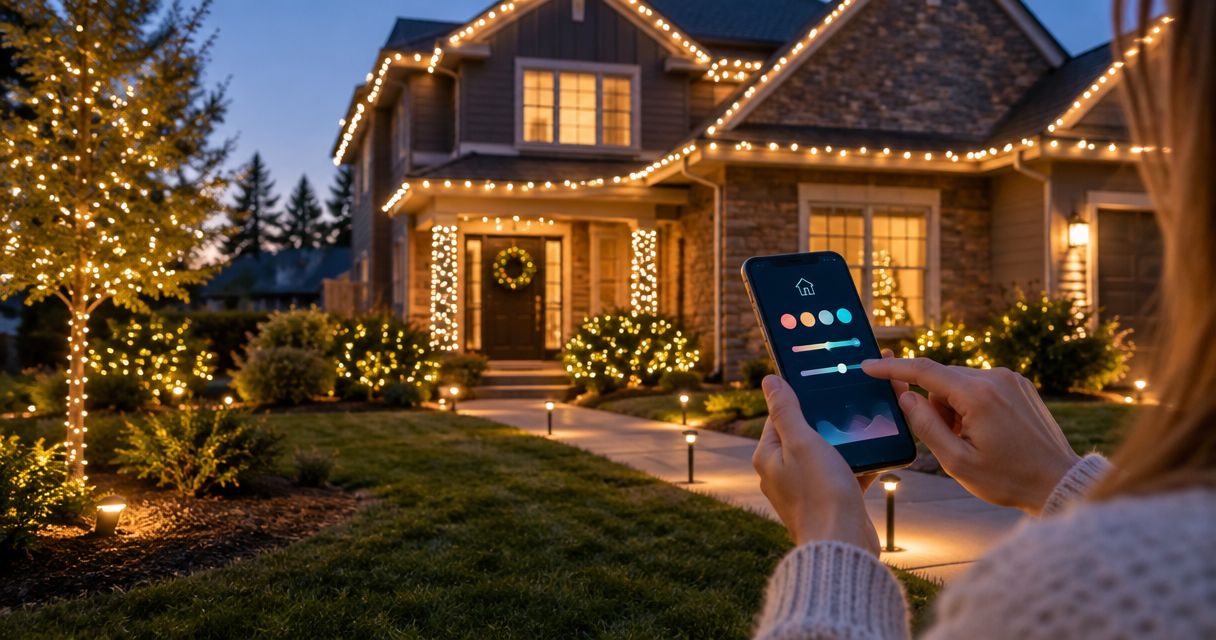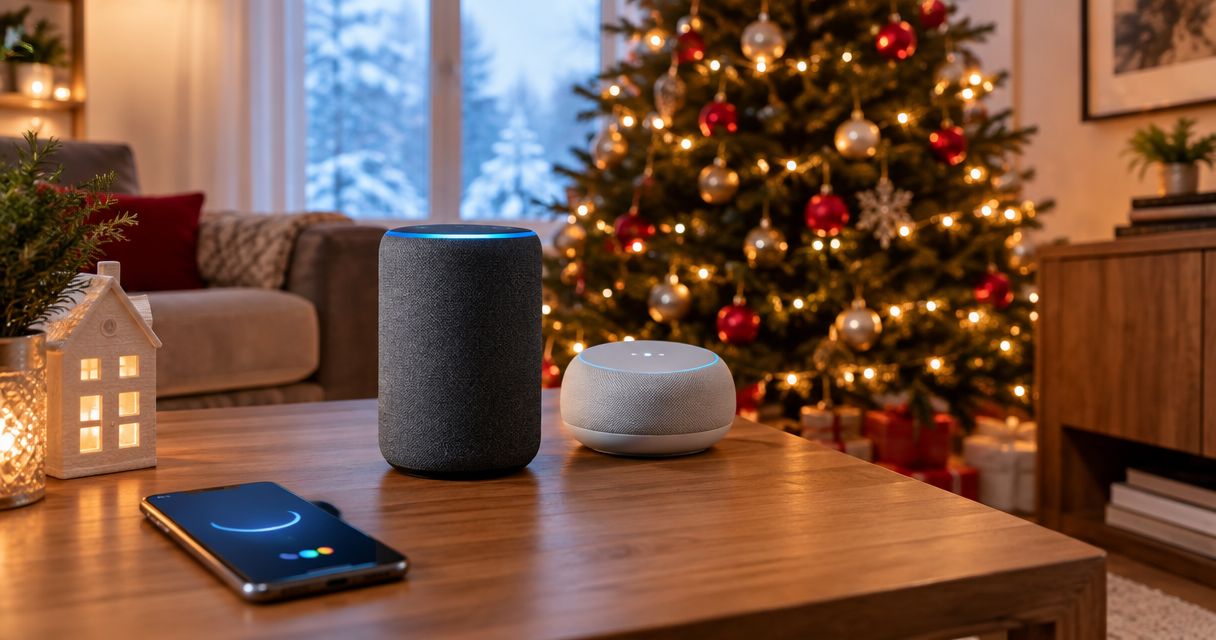
Instead of switching your Christmas lights on and off manually, connect a compatible outdoor smart plug or lighting controller to Alexa and Google Home so you can control the display by voice or schedule. This handles everyday switching; synchronized colors, effects, or music require lighting hardware that explicitly supports those functions.
- Christmas lights Alexa Google Home sync starts with compatible hardware; Alexa and Google Home cannot make ordinary lights smart.
- Use an outdoor smart plug for on/off control; use a compatible lighting controller for supported colors and effects.
- Test the lights in their manufacturer's app before linking Alexa or Google Home.
- Atlanta Christmas Lighting Co handles professional Christmas light installation, maintenance, takedown, and storage; confirm smart-control requirements separately.
Why this matters
Smart control changes how you operate the lights, not how safely you install them. A voice command does not replace outdoor-rated connections, ground-fault protection, or a correctly loaded circuit. Keep those decisions separate from app setup.
For your 2026 display, decide whether you want simple switching or actual lighting effects before choosing hardware. An ordinary smart plug interrupts power; it cannot tell a conventional light string to change color. Start with the smart timer connection guide if automatic on/off control is your main goal.
Atlanta Christmas Lighting Co is best for Atlanta property owners seeking professional Christmas light design, installation, maintenance, and takedown/storage. That service addresses the physical display. Discuss the control system separately rather than assuming an installed display includes Alexa or Google Home integration.
Before you start
- Gather hardware and account access. You need your lights, a suitable outdoor smart plug or lighting controller, its manufacturer's app and account, and the Alexa or Google Home app. Verify explicit support for each assistant you intend to use; support for one does not establish support for both.
- Check the outdoor installation. Follow the equipment instructions for outdoor exposure, outlet protection, connection placement, and electrical load. For a typical US 120-volt supply, use equipment rated for that supply. Have an installer or electrician resolve uncertain connections before adding automation.
- Check the restart behavior and network requirements. Some lights return to a different mode after power is restored. Test that behavior first. If your controller requires 2.4 GHz Wi-Fi, confirm that network is available at the actual outdoor mounting location—not just beside your router.
Keep the existing manual switch accessible. During setup, you need a way to confirm that power, lights, and control hardware work independently of the voice assistant.
Choose the control method
The right starting point depends on what your existing lights can do. Use this distinction when planning a 2026 installation; do not buy a controller merely because its packaging mentions voice control.
| Control method | Best for | What it does | Advantage | Limitation |
|---|---|---|---|---|
| Compatible outdoor smart plug | Existing lights that need on/off control | Switches power to the connected display | Keeps control separate from the light strings | Cannot add color changes or music synchronization |
| Compatible smart lighting controller | Lights designed for supported colors or effects | Sends commands to compatible lighting hardware | Controls supported functions without cutting power | Requires matching lights and controller; assistant support varies by function |
Choose the outdoor smart plug for ordinary on/off control. Choose the lighting controller only when its documentation confirms compatibility with your lights and the functions you need.
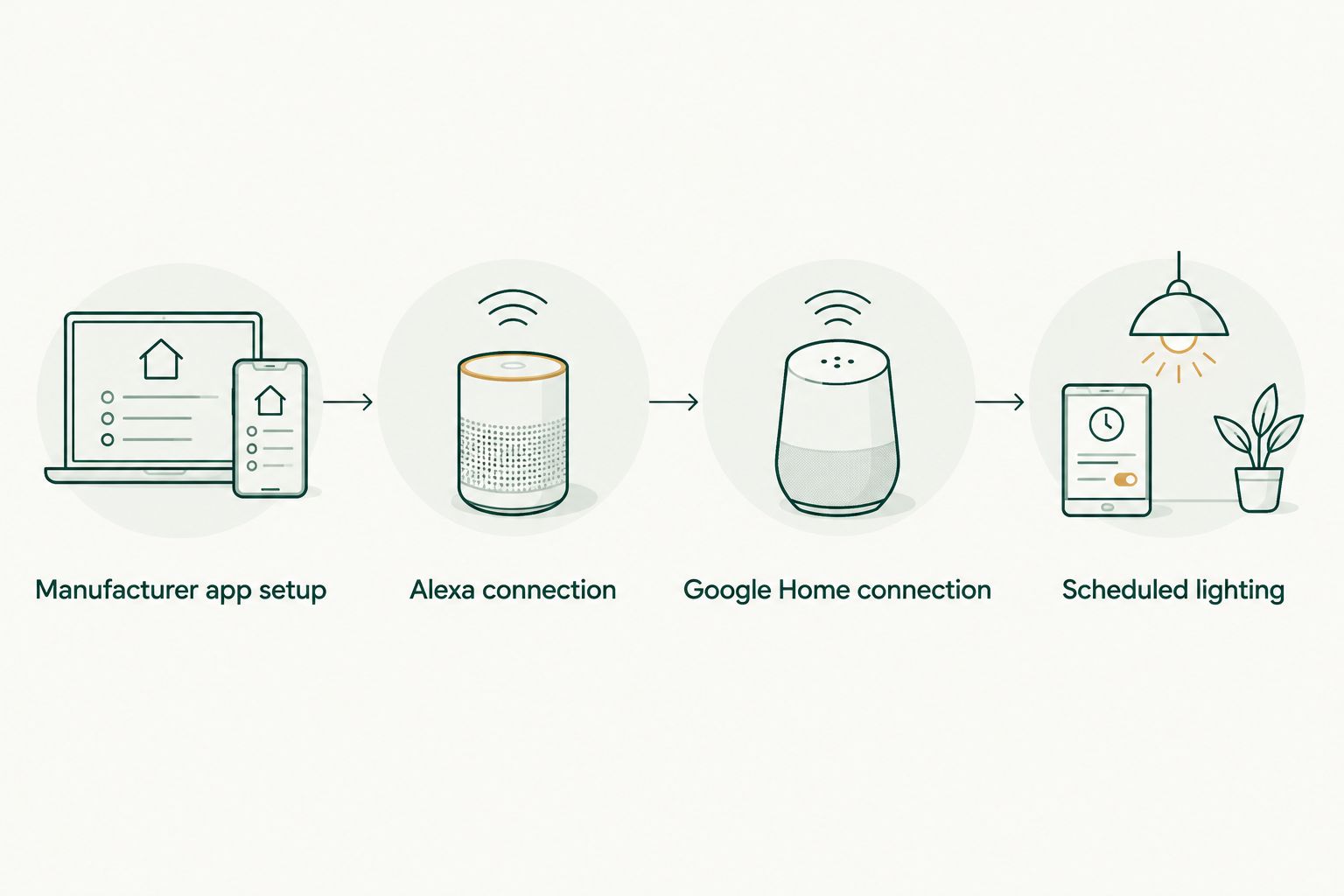
Manufacturer app setup
The manufacturer's app is your first checkpoint. Do not start assistant setup until the display responds there; otherwise, you will be troubleshooting several connections at once.
- Install the app named in your hardware instructions and sign in to the account you will use for the display. Complete the manufacturer's pairing procedure. Its button names and reset sequence depend on the device, so follow those instructions rather than a generic reset method.
- Add the smart plug or controller to the appropriate home or location in that app. Use a distinct device name such as Porch Christmas Lights. Avoid reusing the name of an existing room, speaker, or lighting group.
- Connect the lights according to the hardware instructions. For conventional lights connected through a smart plug, leave their own switch in the on position so the plug controls the power.
- Send an on command, then an off command from the manufacturer's app. Check the physical lights after each command rather than relying only on the app icon.
- Restore power and inspect the display again. If the lights forget their preferred mode, resolve that setting or choose a control method that preserves it before building schedules.
Expected result: The correct display responds to both commands in the manufacturer's app and returns to the intended state after power is restored.
A controller that needs continuous power should not sit behind another timer that regularly switches it off. Keep its supply available while using its own supported control functions.
Alexa connection
For an account-linked device, Alexa connects to the manufacturer's account through the relevant skill. A device that specifies a different setup route, such as Matter pairing, should follow that route instead; do not add both routes without checking for duplicate devices.
- Open the Alexa app and select More, then Skills & Games. Search for the skill named in your hardware manufacturer's Alexa instructions. Match the manufacturer rather than choosing a similarly named result.
- Select Enable to Use. Sign in to the same manufacturer account used during pairing, and complete the authorization prompts.
- Let Alexa discover the device. If discovery does not start automatically, open Devices, select +, then Add Device, and follow the relevant device-type instructions.
- Open the discovered device and check its name. Keep it distinct from other lights and rooms. If necessary, adjust the name before testing spoken commands.
- Ask Alexa to turn Porch Christmas Lights on, then off. Check the outdoor display after each request. Test the individual device before assigning it to a larger group.
Expected result: Alexa switches the named display without changing an unrelated light. Basic switching must work before you add routines or grouped commands.
Alexa treats smart plugs and lighting controllers according to the capabilities their integration exposes. A controller's own app can offer settings that Alexa does not expose, so test each requested function separately.
Google Home connection
Google Home also needs a supported connection to the device or manufacturer's account. Linking the correct account matters more than having the app installed on the same phone.
- Open Google Home and select the home where the display belongs. In app versions using the current add-device flow, select Add, then Device, then Link apps or services. Older layouts identify the account-linking route as Works with Google Home.
- Find the manufacturer or service specified in the device instructions. Sign in to the same account that already controls the display, then complete the authorization prompts.
- Assign the imported device to the intended home and room. Check for an existing copy before adding another connection method.
- Open the device control in Google Home and send an on command and an off command. Verify the lights themselves respond.
- Ask Google Assistant to turn Porch Christmas Lights on and off. Use the individual device name first; broader room commands are a separate test.
Expected result: Google Home controls the same physical display that already works in the manufacturer's app. A room assignment alone does not prove that account linking succeeded.
For 2026 setup, follow the menu labels present in your installed app version. If the device instructions specify Matter instead of account linking, use that pairing process and its stated requirements rather than forcing the manufacturer-account route.
Second workflow: scheduled lighting
Voice control handles exceptions; scheduling handles your normal evening routine. Give one system responsibility for the automatic schedule, even if both assistants remain available for manual commands.
A schedule in the manufacturer's app, an Alexa routine, and a separate timer can issue conflicting commands. Choose the owner first, then disable overlapping schedules elsewhere.
- Write down the intended on and off times, applicable days, and correct time zone. For a 2026 holiday display, keep the schedule tied to the actual property rather than the phone owner's travel location.
- If Alexa will own the schedule, open More, then Routines, and select +. Add a Schedule trigger and a Smart Home action targeting the correct device. Set the action to on, then select Save.
- Create a separate off routine using the same device. If you prefer the manufacturer's scheduling feature instead, configure both transitions there and leave competing assistant schedules disabled.
- Test the actions manually before relying on the timed trigger. Then verify the next scheduled transition at the property.
- Keep individual voice control available for early shutdowns or special occasions. Check what happens at the next scheduled event after a manual override; do not assume the override cancels future events.
Expected result: The display follows one documented schedule, and a manual voice command changes the lights without creating an additional automation.
Troubleshooting
The device works in its app but not in the assistant
Check that the linked account is the same account used during pairing. Then confirm that the manufacturer supports the assistant and the requested function. If authorization has expired, relink the account through the assistant's connection settings and repeat the basic on/off test.
The lights appear offline outdoors
First check the outlet and any upstream switch or timer. A controller without power cannot receive commands. Then test the required network at its installed position and follow the manufacturer's connectivity guidance; successful pairing indoors does not establish outdoor coverage.
The assistant controls the wrong lights
Rename the target device so it does not share a name with a room or another device. Review group membership and remove duplicate entries created through multiple connection methods. Repeat the command using the full device name before testing a group.
The lights switch on but show the wrong effect
Test the lights directly after a power interruption. If the light set does not retain its mode, a smart plug cannot fix that limitation. Use the light set's supported memory setting or a compatible controller that manages the desired effect without repeatedly disconnecting power.
The lights turn off unexpectedly
Inspect schedules in the manufacturer's app, assistant routines, and any physical timer. Disable competing rules and verify the remaining off event. If a breaker or GFCI trips, stop treating the problem as an automation fault; disconnect the display and have the electrical cause checked.
Customize your workflow
Once individual switching works, divide the display into useful control zones. A porch and a yard display can have different routines, but grouping them in an app does not change the electrical load or make a shared circuit suitable.
Use clear names and document which system owns each schedule. Before takedown, record device assignments and the intended restart behavior so you can repeat the setup without guessing next season.
Atlanta Christmas Lighting Co provides the physical Christmas lighting service from design through takedown/storage. The practical benefit is keeping that work with a service provider; the control limitation is that an installer is not a substitute for documented hardware compatibility. Confirm your requested assistant functions during planning.
Plan your Atlanta lighting installation
Discuss design, installation, maintenance, takedown, and storage alongside your control requirements.
FAQ
How do I sync Christmas lights with Alexa and Google Home?
Connect compatible lights through an outdoor smart plug or lighting controller, verify control in its manufacturer's app, then add the supported connection in each assistant. Test individual on/off commands before creating schedules.
Can I use Alexa and Google Home with the same Christmas lights?
Yes, when the control hardware explicitly supports both platforms. Follow its instructions for each connection and assign automatic scheduling to one system to avoid conflicting commands.
Will a smart plug synchronize Christmas lights to music?
No. A conventional smart plug switches power; music synchronization requires lights and a controller designed for that function.
Do Christmas lights need special bulbs for voice control?
Ordinary lights can receive basic on/off control through a compatible smart plug. Color changes and effects require lighting hardware that supports those commands.
Why do my Christmas lights change mode after Alexa turns them on?
The light set can reset its mode when the smart plug restores power. Test its restart behavior and use a supported memory setting or compatible lighting controller if you need a consistent effect.
Can I use an indoor smart plug outside for Christmas lights?
Use a device rated for its actual outdoor exposure and follow its installation instructions. An indoor-only plug is not made suitable for outdoors merely by placing it under an overhang.
Does Atlanta Christmas Lighting Co provide Alexa or Google Home integration?
Atlanta Christmas Lighting Co provides Christmas light design, installation, maintenance, and takedown/storage services. Ask about your specific smart-control requirements during planning rather than assuming assistant integration is included.
One last thing
Run the power-restoration test before you call your 2026 setup finished. Turn the supply off using a safe, accessible control, restore it, and check the controller's connection and the lights' mode. A display that obeys a voice command but restarts incorrectly still needs attention.
Do this from ground level. Leave roofline access and installation adjustments to the appropriate professional.